
The best IPTV app for Android TV is the one that makes your regular viewing easy on your actual television. A readable guide, predictable remote controls and the right account support matter more than an impressive list of features you never open.
For a remote-first Android TV setup, TiviMate is our first option to investigate. HOT Player is an alternative to consider when its playlist-management approach suits you better. These are editorial suggestions based on published features and platform support, not a claim that we benchmarked every app or tested your viewing service.
Official information checked November 1, 2026. This guide helps readers plan for 2027; app availability, paid features and menus can change.
Best IPTV app for Android TV: compare your shortlist
| App | Why consider it? | Check before paying |
|---|---|---|
| TiviMate | TV guide and remote-oriented interface | Device availability, playlist support and Premium terms |
| HOT Player | Favourites, search and playlist management | Exact Android TV version and activation conditions |
This is a focused shortlist, not a ranking of every player. Begin with your essential tasks and compare only apps that officially support your device. Our player selection checklist explains how to define those requirements.
TiviMate: the starting point for a guide-focused setup
The official Google Play listing identifies Armobsoft FZE as the developer and describes TiviMate as designed for Android TV and remote navigation. It lists M3U, Xtream Codes and Stalker Portal input, a programme guide, favourites and multiple playlists.
Its published features also include recording, catch-up and multiview. Investigate current paid options and the conditions required for each feature. Recording needs a supported storage arrangement; catch-up needs suitable source content; opening several streams must stay within your account’s permitted connections. A button in the app does not establish that every source supports the function.
Use our TiviMate guide for more context. If you already own Google TV, the Google TV setup walkthrough covers installation and first use. This comparison helps you choose; those guides help you configure the chosen app.
HOT Player: an alternative worth checking
HOT Player’s official site lists Android TV among its platforms and describes favourites, search, sorting and playlist management. Check the listing for your own device and read the current activation conditions before purchasing.
Consider how you prefer to maintain a playlist. If you regularly help someone else manage a television, the account-entry and playlist-update process deserves as much attention as the playback screen. Try updating a playlist and returning to favourites before deciding whether that workflow is comfortable.
Read our HOT Player guide for app-specific background. Keep the player purchase separate from content access: these applications organise and play content supplied through your own authorised sources.
Check Android TV compatibility carefully
Find the device model and operating-system version. A box advertised simply as “Android” does not automatically offer the same television app catalogue or remote experience as Android TV. Check the actual store listing from the device you intend to use.
On Google TV, Google documents app search and installation. Verify the developer before selecting Install. If the desired listing is absent, investigate device and regional availability instead of assuming an unrelated download with a similar name is equivalent.
A Samsung television running Tizen needs a different approach. See our Samsung TV app guide rather than following Android installation instructions on its built-in system.
What makes an app useful every evening?
A guide you can read from the sofa
Check programme names, time labels and contrast at your normal viewing distance. A dense guide may look attractive in a screenshot but be awkward on your screen. Confirm that the supplied schedule matches the programmes you use; no player can fill missing guide information without a suitable data source.
Controls that match the remote
Test back, channel navigation, search and favourites. Avoid choosing an app whose everyday workflow depends on touch controls or a pointer you find uncomfortable. The easiest interface is the one your household can recover from after pressing the wrong button.
Understandable cost and maintenance
Read current purchase terms rather than relying on prices quoted in old tutorials. Check device allowances, renewal conditions and how to restore access after replacing a TV. Keep a record of the exact app and developer so future troubleshooting starts with the correct product.
Test the app before committing
Use a small set of programmes you actually watch. Spend time with one stream rather than opening fifty channels for a few seconds. Check sound, subtitles where available, returning to the guide and finding a favourite from the home screen. Ask someone else in the household to repeat those tasks without instructions.
Keep the device and network unchanged when comparing players. Otherwise, you may attribute an improvement to an app when the connection changed too. Note the programme, local time, connection type and length of the session. Record interruptions as observations rather than guessing their cause.
Our IPTV trial checklist helps structure the assessment. If playback repeatedly stops, follow the buffering troubleshooting guide before buying another player licence. An application cannot guarantee that a remote source or home network always delivers video reliably.
Keep account details private
A playlist URL may contain a password or access token. Avoid publishing it in screenshots, reviews or support forums. Reach any playlist-management page through the verified developer’s instructions rather than an unfamiliar search advertisement. Keep player activation details separate from the account that supplies programmes.
Before reinstalling or clearing application data, save the information needed to restore your setup securely. Check what a documented backup feature actually includes. Favourites, guide preferences and account details may not all be preserved together.
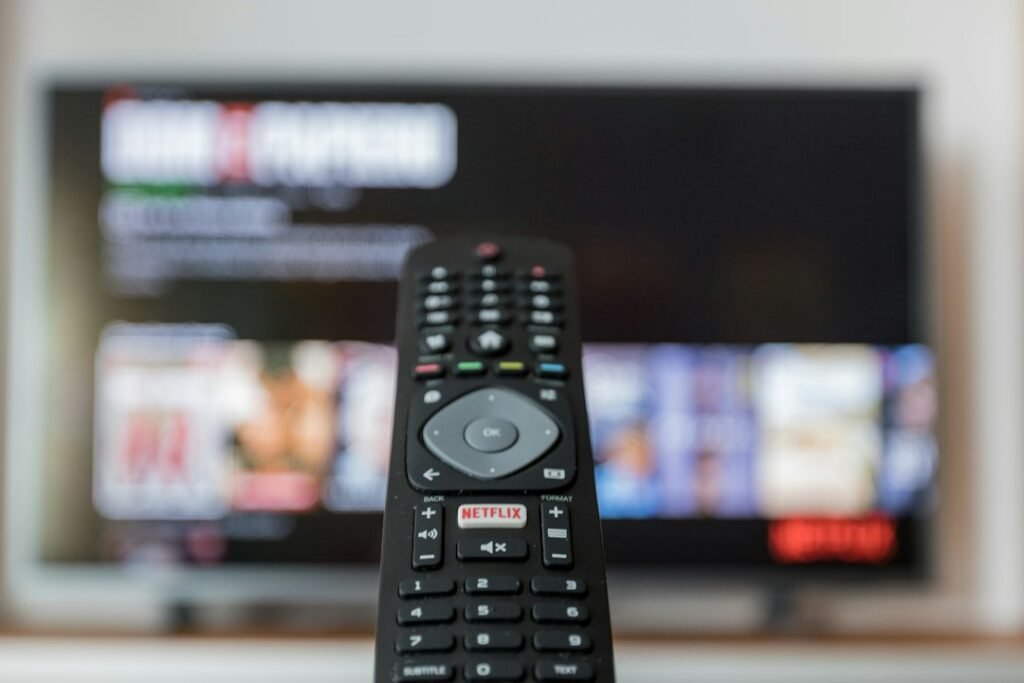
Illustrative stock photo: Piotr Cichosz / Unsplash. The image is not a device test or a screenshot of the apps discussed.
Frequently asked questions
Is TiviMate the best IPTV app for every Android TV?
It is a strong starting point for readers seeking a remote-oriented guide, but suitability depends on the device, required functions and supported content. Test those essentials before making a purchase.
Does a paid player include channels?
Do not assume so. Check exactly what the purchase unlocks. Player features and a viewing account are separate items.
Should I replace my television to run another app?
Identify a real limitation first. If the existing setup meets your needs, there is little reason to replace it. Our box buying checklist helps assess an external device when one would solve a specific problem.
Browse related platform guides in IPTV by Device.